First sign-in and connecting storage
S3 Web UI is running (Docker or Helm) and you want to sign in, connect an S3-compatible endpoint and upload a first file. The application works with endpoints such as AWS S3, Ceph RGW, RustFS and MinIO for normal object operations.
1. Sign in
Open the address of your instance, for example http://localhost:8080. On a new database, sign in with admin@s3webui.local / admin, then change the password under Settings → Users. If you set ADMIN_PASSWORD during installation, use that instead.
If you started the application with S3_ACCESS_KEY, S3_SECRET_KEY and S3_ENDPOINT_URL, a built-in S3 key is already available to every signed-in user and you can continue with step 3. It is read-only in the administration panel; its effective storage permissions still come from the S3 credential.
2. Connect an endpoint from the UI
After signing in, choose the key button in the top bar. If no stored key is granted to you, the connection dialog opens automatically. Enter your access key, secret key, endpoint URL, and region, then select Connect with these credentials.
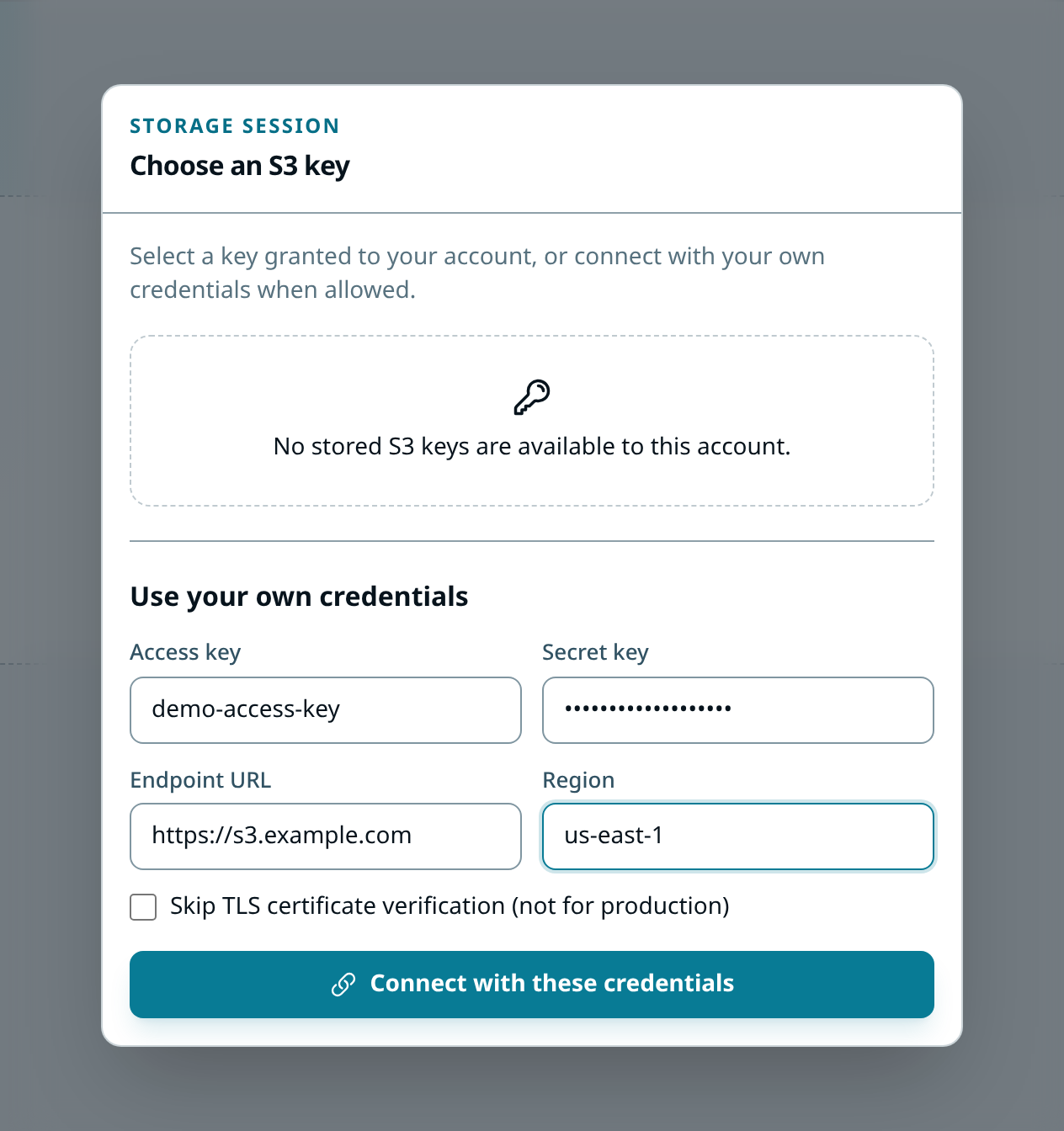
This connection is held in the browser session. An administrator can disable this option in Settings → Options; in that case, use an S3 key assigned to your account instead.
3. Create a bucket and add an object
- From Buckets, select New bucket and provide a bucket name accepted by your storage provider.
- Open the bucket, then use Upload to select files or drag them into the dialog.
- Use New folder to create a prefix. S3 folders are virtual; they are represented by object key prefixes rather than real directories.
- Use the row actions to download, rename, or delete a file.
Files up to 5 MB use a regular form upload. Larger files use a server-proxied multipart upload with progress and estimated time remaining. The proxy avoids browser-to-S3 CORS requirements.
Common first-run issues
| Symptom | What to check |
|---|---|
| No key is available | Add a key under Settings → S3 keys, add a complete S3_ACCESS_KEY, S3_SECRET_KEY, and S3_ENDPOINT_URL set, or allow own credentials. |
| Connection fails with a certificate error | Fix the endpoint certificate and use an HTTPS URL. The bypass option is for temporary development troubleshooting only. |
| Stored keys stopped working after a restart | Restore the original /app/data volume or the original APP_ENCRYPTION_KEY; a new key cannot decrypt old secrets. |
| The default password does not work | ADMIN_PASSWORD is used only while the user table is empty. Reset the existing account through an administrator or the database procedure used by your deployment. |
Continue with Storage workflows for day-to-day object work, S3 key management to make shared connections available to a team, or the administration overview for the full overview.