Work with buckets and files
This guide covers the bucket browser, object operations, search, uploads, and storage statistics. The underlying S3 key decides what the storage service permits; S3 Web UI does not add permissions to that key.
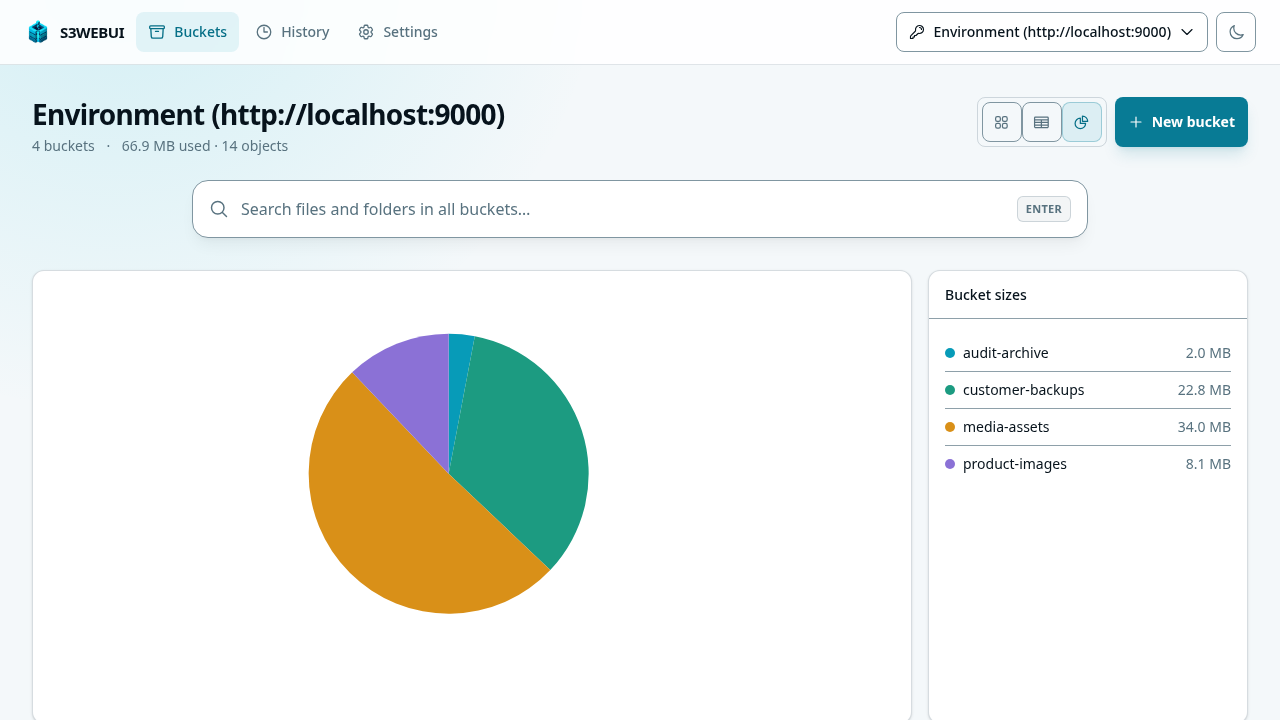
Product-tour capture. Statistics are calculated for the active S3 key and can be unavailable when the backend cannot return them.
Bucket views and statistics
On Buckets, use the view buttons to select cards, a sortable table, or a chart. The table and chart display each bucket's object count and total size, while the page also calculates a total. These values are loaded after the bucket list itself; they may briefly show as calculating or unavailable.
The table sorts by name, creation date, size, and object count. The active S3 key limits every view to the buckets it can list.
Browse and search objects
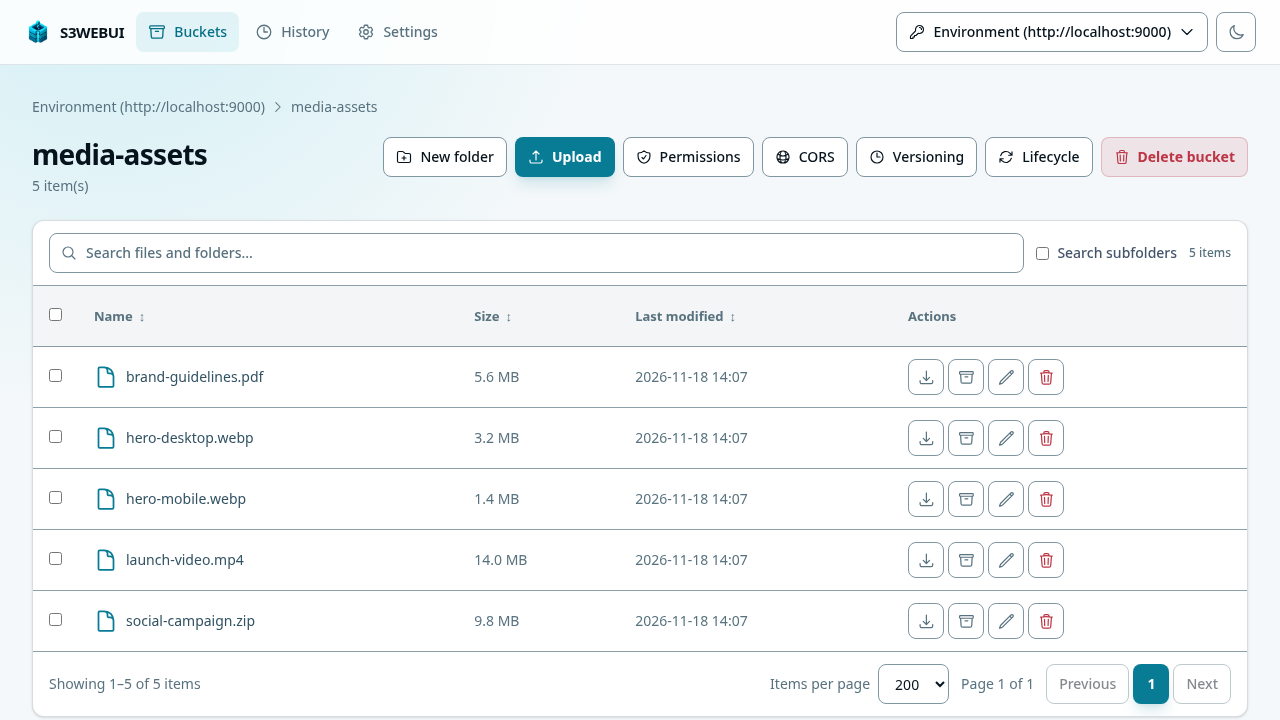
Open a bucket to browse prefixes using the breadcrumb. S3 uses object keys, so folders are virtual prefixes rather than filesystem directories. New folder writes the prefix marker used by the interface.
- Sort the object table by name, size, or last-modified time.
- Use the current-path search to filter visible files and folders as you type.
- Enable Search subfolders to include matches below the current prefix.
- Use global search for all buckets available to the selected S3 key. Queries need at least two characters; the five-minute per-session catalogue is rebuilt when you choose refresh or change the active S3 key.
Upload files
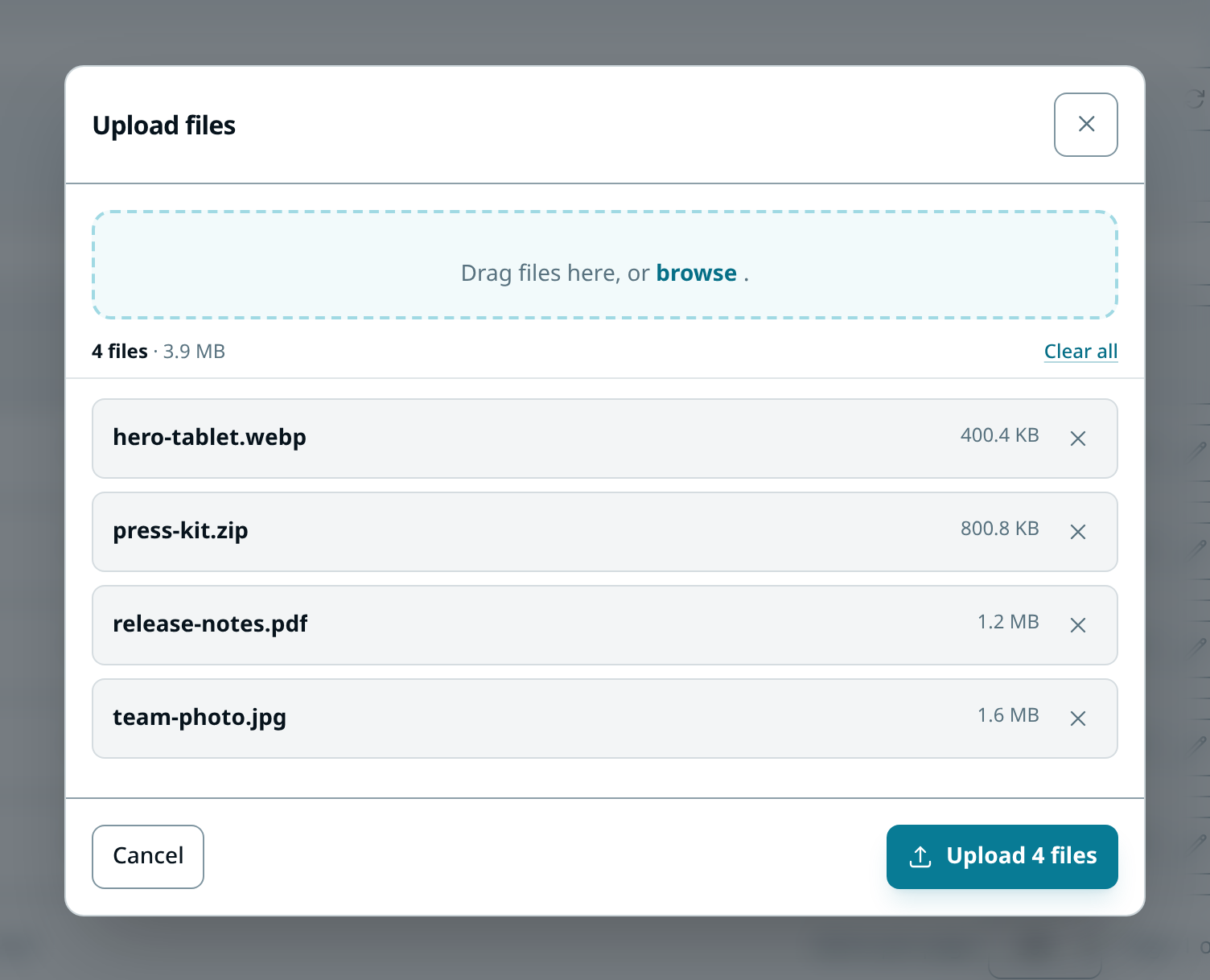
Select Upload and choose files or drop them onto the dialog. Duplicate selections with the same name and size are ignored. Files are uploaded one at a time, so progress and a final success/failure count are clear for each file.
| File size | Transfer method |
|---|---|
| 5 MB or smaller | Regular form upload through S3 Web UI |
| Larger than 5 MB | Server-proxied S3 multipart upload with 5 MB parts |
Multipart parts are proxied through the application, avoiding browser-to-S3 CORS requirements. The UI shows per-file and overall progress. After a completed batch, select Upload another batch to clear the list and begin again. Closing the dialog reloads the bucket when at least one upload succeeded.
The application accepts requests up to 5 GB by default. The multipart endpoint also rejects a single part larger than 5 GB. Upload failures leave the affected file marked as failed while later files in the batch continue; retry the file after fixing the endpoint, permission, or network issue.
Copy, move, rename, and delete
Use the object-row actions for one file, or select multiple rows for bulk actions.
| Action | Result |
|---|---|
| Download | Streams the selected object through S3 Web UI. |
| Rename | Creates the object with its new key and removes the old key. |
| Copy | Copies selected objects or complete selected folders to a bucket and optional destination prefix; sources remain. |
| Move | Performs the same transfer, then removes the sources. |
| Delete | Removes selected objects. Selecting a folder applies to its contents. |
| Migrate | Copies or moves buckets, folders or files to a different S3 key on the server, with live progress. See Migrate data between S3 keys. |
Download as ZIP
Each folder row has a Download folder as ZIP button. To download several items at once, select them and use Download selected as ZIP. Folders are included recursively and keep their name inside the archive. The archive is streamed from S3 as it is built, and is limited to 10,000 objects per download.
When copying or moving a folder, its own name is preserved below the destination prefix. For example, moving reports/ to archive/ produces archive/reports/.... Transfers and renames are composed of S3 operations, not filesystem moves; avoid interrupting a large operation and verify the destination before deleting the source yourself.
Deleting a non-empty bucket requires an explicit Delete everything confirmation. The application removes object versions and delete markers in batches before it deletes the bucket.